Key Takeaways
- Most of the admin that eats up your week can run by itself, and you won’t have to give up the apps you’ve already paid for.
- What makes it possible is linking those apps. When someone fills in your website form, their name and number turn up in your customer list without anybody retyping them.
- Your first pick should be the task your team repeats the most and slips up on the most.
- People still need to handle the hard stuff, whether that’s an angry customer, an argument over a bill or a call that comes down to gut feel.
- Got a process that’s already messy? Fix it before anything else, because automating it the way it is only gets you the same mess quicker.
Most small businesses have the same handful of jobs they’d love to stop doing by hand. The business processes SMBs can automate first are usually those, like entering new leads or reminding a client their invoice is late. You probably won’t need to buy anything new. The apps you’ve got can be linked up and left to run.
If you’ve lost count of how many apps your business pays for, you’re in good company. According to the U.S. Chamber of Commerce’s 2026 Empowering Small Business report, 41% of small businesses now use six or more tech platforms. That’s close to three times as many as in 2022. Each of those apps tends to work well enough by itself. Things fall apart in between. A customer emails their phone number, someone pastes it into a spreadsheet, then messages a coworker to say it’s there. Do that fifty times a week and you’ve found where the hours go.
Swapping all of it for one big system sounds tidy on paper. It’s also a big bill, and everyone on your team has to relearn their day. Hooking up what you already have tends to cost less, and nobody loses the screens they’re used to. That’s the approach behind all ten jobs in this guide. For each one, you’ll see how it’s usually done by hand and which parts can run without anyone touching them. You’ll also see where you’d still want a human.
Table of Contents
- What Does It Mean to Automate Without Replacing Your Software?
- Which Business Process Should You Hand Over First?
- Which 10 Business Processes Can SMBs Automate Without Switching Tools?
- What Should You Not Automate Yet?
- What Makes Automating Your Current Tools Cost More or Less?
- How Do You Keep Business Automation Safe and Private?
- What Does a Rollout Look Like, Step by Step?
- Why Choose iTechnolabs for Business Process Automation?
- Conclusion: Which Process Should You Automate This Quarter?
- Frequently Asked Questions
What Does It Mean to Automate Without Replacing Your Software?
You keep your apps and add connections between them. People carry on in the screens they know, minus the copy and paste.
Picture a small plumbing firm. Someone books a visit through the website form. Right now the office manager opens that email and keys the address into the customer list. Then she hunts for a free slot on the calendar and texts whichever plumber is nearest. Once the form is linked up, the customer lands in the list with an open slot already picked. The plumber’s phone buzzes with the job. The office manager still sees every booking. She’s no longer retyping them.
Which route makes sense comes down to the software you’ve got.
Check the settings in your apps before anything else. Plenty of well-known ones, including most booking tools, come with a ready-made link to Google Calendar. Switch it on and every new appointment appears in your calendar. For a small job between two big-name apps, that’s often all you’ll need.
No ready-made link? Then Zapier or Make is where most owners end up. You give it a plain instruction, something like “every time the contact form gets filled in, put a new line in my sales sheet.” It keeps doing that day and night. If your apps are popular ones, you can often get this working without hiring a developer.
Older or unusual software is a different story, and so is anything built only for your company. In that case a developer makes a small piece of software that joins your apps the way your business works.
Then there’s the screen robot. Picture software sitting in front of an old program, clicking and typing like a person would, all day without a coffee break. You’d only reach for it when that old program has no other way of handing its information over.
And if your desk is buried in paperwork, there’s a tool for that too. Hand a document reader a supplier’s PDF invoice or a crumpled receipt someone photographed in the van. It finds the names, dates and amounts so nobody has to type them out. If most of your paperwork comes in by email or through the scanner, this is the one to look at.
Connector services cost more the more you use them. Most bill by the number of tasks they run each month. If you’re handling hundreds of orders a week, the cheap starter plan won’t last long. At some point that monthly bill gets big enough that paying once for a custom link works out cheaper.
Which Business Process Should You Hand Over First?
Go for something your team does all the time, the same way each time. It’s even better if a slip-up there costs you money.
Start with a notepad. Write down anything your team does more than once a week, even small stuff like forwarding emails to the right person. Now go down the list and put a tally next to each task for how often it comes up. Something that happens 40 times a week will save you more than a once-a-month job. That’s true even if the monthly one is the one everyone groans about.
Next, cross out anything where the honest answer to “how do you do it?” starts with “well, it depends.” Those jobs can wait. The steps need to be the same most of the time for software to follow them.
Last, think about what goes wrong when someone slips. A forgotten follow-up can lose you a job worth thousands. A typo in an internal note doesn’t cost you a cent.
Whatever survives all three passes goes to the top of your list. In service businesses, it’s usually to lead follow-up, getting new clients set up, or nudging people about unpaid invoices. Pick one and get it working well. Once your team sees it run for a month, the second project is an easier sell.
Which 10 Business Processes Can SMBs Automate Without Switching Tools?
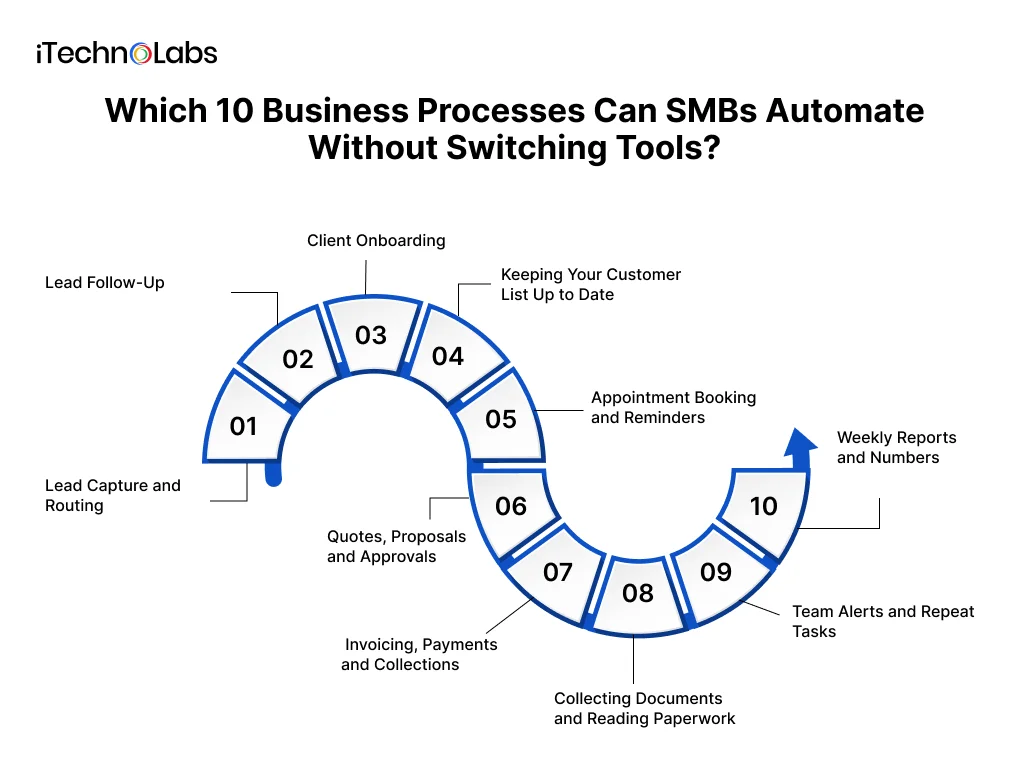
These ten jobs show up in almost every small business we’ve worked with, from clinics to agencies to trades. Each one can run on top of the apps you already have.
1. Lead Capture and Routing
A lead fills in your website form at 9 p.m. on a Friday. In a lot of small firms, nobody sees it until Monday morning. By then, they’ve often called someone else.
Once your form is hooked up to your customer list, that Friday-night message doesn’t sit around waiting for anyone. It drops into the list on its own. Say the same person asked you for a quote last spring. The system finds their old entry and adds the new request to it, so you don’t end up with two of them. Then it works out who should call back. You might have Priya on everything west of the city and Mark on the big commercial work. Write that down once and the system sticks to it. Within seconds, the right person’s phone lights up with a note saying when to call back.
The selling is still all yours. All the software does is get the lead to the right desk before it goes cold.
This is usually a light job if your form and customer list are popular apps.
2. Lead Follow-Up
A lot of deals die from silence. A renovation contractor sends a quote, gets busy on site, and forgets to check back for two weeks.
Remembering dates is the part software handles best, and it’s the first thing a contractor forgets when they’re knee-deep in a job. As soon as someone gets in touch, a short “thanks, we’ll call you tomorrow” email goes out, usually within a minute. If three days pass after the quote with no word, your salesperson gets a reminder to check in. By Friday, if it’s still quiet, the customer gets one more friendly email. The moment they reply, the reminders switch off and your salesperson takes it from there.
We wouldn’t let it send everything on its own, though. On a big job, or with a client who’s touchy about price, have the system draft the email and let your salesperson read it first. It takes ten seconds and the message still sounds like them.
3. Client Onboarding
Picture a small accounting firm the day a new client signs. Someone sends a welcome email with the list of papers they’ll need. A folder gets made in Google Drive and the client goes into the customer list. The team gets their tasks, and somebody remembers (hopefully) to update the tracking spreadsheet. Every new client gets the same nine or ten steps, and they all live in one person’s head.
Once the contract’s signed, most of that can happen without anyone lifting a finger. The client gets their intake form straight away. Their folder appears with the same naming style as every other client’s, so nobody has to hunt for it later. Your team sees their tasks show up with dates attached. Has a client been sitting on their bank statements for five days? They get a polite nudge before anyone on your side has to pick up the phone.
You can do the same thing for new staff. The day someone signs their offer letter, a laptop gets ordered and the payroll paperwork lands in their inbox. Their new boss gets a nudge to sort out what week one looks like. Nobody in HR has to write a single email to make any of that happen.
What stays human is the welcome call and setting expectations. That first real conversation is where trust gets built, so don’t hand it to a template.
4. Keeping Your Customer List Up to Date
Most businesses keep customer details in some kind of customer list software, often called a CRM. HubSpot, Zoho and Salesforce are common ones. The problem is that people type the same details in again and again. The customer already gave their phone number on the booking page. Then someone retypes it into the customer list.
With the apps linked, details from forms, booking pages and email flow straight into each customer’s record. When a deal moves forward, the stage updates too. Records stop going stale because they no longer depend on someone’s spare time on a Friday afternoon.
People still decide what a call means for the deal. The link keeps the record current, and your salesperson writes what matters.
5. Appointment Booking and Reminders
How many emails did your team send last month trying to agree on a meeting time? Add the people who booked and then never turned up, and that’s a lot of lost hours.
A booking link sorts out most of it. Your customer opens the link, sees which slots you have free and grabs one. A confirmation and a calendar invite land in their inbox straight after. The day before, they get a text to remind them. If their plans have changed, there’s a link in that text to pick a new time without calling anyone. When the meeting wraps up, the person who ran it sees a reminder waiting in their task list, saying “send over the proposal.”
You’ll see this at the dentist, at a law office or with a business coach. The words in the reminder text change from one to the next, and that’s about it.
Your oldest clients are the exception. When someone who’s been coming to you for years has to cancel, a person on your team should ring them. Getting a booking link back from a place you’ve trusted that long can sting a little.
6. Quotes, Proposals and Approvals
At a lot of small marketing agencies, finding last month’s signed proposal means ten minutes of digging through old emails. The proposal was pieced together from three email threads and pasted into an old template. Someone saved it as “Proposal_FINAL_v3” and sent it to the boss to check. After that, nobody’s sure which copy the client signed.
Linking your apps cleans this up. When a deal’s ready to go, someone clicks a button and the proposal builds itself from what’s already on file, like who the client is, what they asked for and what you quoted. A quick “okay to send?” pops up for your manager. One tap from them and it’s off to the client, who signs it on their phone or laptop. The signed copy drops into that client’s folder, and the deal moves to the next stage without anyone dragging it there.
Requests to spend money inside the business can follow the same path. Your designer asks for a new software subscription, and the ask goes to whoever signs off on that kind of spend. Their answer gets kept on record. If it’s a yes, the card gets charged or the purchase order goes out without anyone reminding anybody.
Before a proposal goes to a client, someone should still read the numbers and the contract wording with their own eyes. Software is good at filling in a template. Spotting a price that looks wrong for this particular client is a job for your manager.
7. Invoicing, Payments and Collections
Nobody enjoys chasing money. That’s why it slips first when the week gets busy.
Take a landscaping company. The crew finishes a garden on Thursday and marks the job done on their phone. By the time they’ve packed up the truck, QuickBooks or Xero has put the invoice together and emailed it to the homeowner. Say the bill’s still unpaid a day after it was due. A friendly “just a heads-up” email goes out on its own. Seven days after that, a firmer one goes out. When the money arrives, the books update and the owner gets a quick note saying it’s paid. A declined card won’t sit there unnoticed either. It turns into a task for someone to follow up.
Some cases need a phone call instead of another email. Maybe the client disputes the amount, or asks to pay in installments. Maybe it’s a loyal customer who’s having a tough few months. Have someone on your team step in for those.
8. Collecting Documents and Reading Paperwork
Ask a property manager about tenant applications and you’ll get a long story. Each one needs ID, pay stubs, references and a signed form. A good chunk of it comes in as fuzzy photos taken on someone’s kitchen table. Then somebody loses a whole afternoon typing those details into the system.
A better form does most of the chasing for you. If an applicant says they’re self-employed, the form asks for tax papers instead of pay stubs. Nobody has to wade through questions that don’t apply to them. Anything left out gets an automatic reminder a couple of days later. Once the file’s complete, a document reader can pick out names, dates and dollar amounts and drop them where they belong.
These readers get things wrong sometimes, especially with a crumpled receipt or bad handwriting. Have the tool flag anything it’s unsure about so a person can take a look. These files are also full of personal details, so read our section on keeping data safe before you switch anything on.
9. Team Alerts and Repeat Tasks
How did your delivery team find out about the last big deal you closed? If the answer is “someone mentioned it at lunch on Wednesday,” you’ve seen this problem. Urgent requests sit unread in shared inboxes for the same reason.
Alerts close that gap. Each one lands on one person’s list with a time it needs doing by, so it’s clear who owns it. When a customer writes in about something urgent, the staff member covering that day hears about it right away. If an hour passes with no response, a backup person gets a ping too.
Some jobs come round like clockwork. Closing the books at month end, the safety check every quarter, that report a client expects on the first of each month. Rather than someone setting these up from scratch each time, they can appear on their own on the right day, with the checklist already attached.
Don’t overdo the alerts. Picture a team getting 50 pings a day. Pretty soon they stop reading any of them, and the one that mattered gets missed along with the rest.
10. Weekly Reports and Numbers
Somebody on your team probably loses a slice of every Monday to this. They copy numbers out of three different apps into a spreadsheet and sort out the ones that don’t match. Then they email the report around, and it’s out of date before lunch.
It’s also one of the simplest fixes on this list. Picture opening one page over your morning coffee and seeing how the business is doing, with numbers that refreshed overnight. People in tech call that page a dashboard. Some owners prefer email, and that works too. Every Monday you’d get a short note listing new enquiries, jobs you won, who still owes you money and what’s left on the team’s plate. Anything that looks odd gets pulled to the top so you see it first.
What you do with those numbers is still your call, and that’s where your time should go.
A Few More Worth Thinking About
Those ten cover most small businesses. Depending on what you sell, a handful of smaller jobs can be worth setting up too.
If you run a shop or a support desk, incoming emails can be sorted by topic and by how upset the customer sounds. That way the angry ones get a reply first. Businesses that hold stock can get a heads-up when something’s running low, along with a reorder request ready to send.
Leave requests are an easy one for any team. The request goes to the right manager, and once they approve it, it shows up on the shared calendar. Trades and service businesses often like automatic review requests. They go out a few days after the work’s done, while the customer still remembers how happy they were.

What Should You Not Automate Yet?
Some work needs a person, and some processes aren’t ready. Knowing the difference saves you from building something your team quietly works around.
Leave judgment calls with people. Deciding whether to give a long-time client a discount, or whether a job is worth taking, depends on context a set of rules can’t see.
Be careful with upset customers too. An automatic “we got your message” reply is fine. The apology and the fix should come from someone on your team, because customers can tell when they’re talking to a template.
Be wary of jobs where every second case is a special one. Software follows the steps you give it, so when the steps keep changing, it trips up and someone ends up redoing the work by hand. A better plan is to automate the usual cases and send the oddballs to a person.
Anything big involving money, contracts or safety needs a named person to approve it. The system can pull the facts together for them, and that’s helpful. The final yes should still come from someone you can point to.
Broken processes are the trap most owners walk into. Say your onboarding already confuses new clients. Automate it as it is, and you’ll confuse them faster and at bigger scale. Get the team in a room, fix the steps on a whiteboard, and only then hand the fixed version to software.
What Makes Automating Your Current Tools Cost More or Less?
Two things matter most, the number of apps involved and how tidy your records are. Linking two well-known apps is a small job. A process that runs across five systems, one of them an old accounting program nobody wants to touch, is a much bigger piece of work.
No two businesses are alike, but these are the things we see move the price and the timeline most often.
| What Affects It | Keeps It Smaller | Makes It Bigger |
| Number of apps involved | Two or three apps | Five or more apps |
| Type of software | Popular apps with built-in connections | Older, rare or custom-built software |
| State of your information | Clean records, one way of naming things | Duplicates, old spreadsheets, mixed formats |
| Rules and odd cases | One clear path with few exceptions | Lots of “if this, then that, unless…” |
| Approvals | No sign-off needed | Several people must approve each step |
| Paperwork | Mostly typed forms | Scans, handwriting, photos of documents |
Simple links built with a connector service are often the quickest to get running. If your tools are older or made only for your business, a team that offers custom software development services can build the bridge for you. That costs more upfront, but you’re not paying a growing monthly bill for every task.
Before you get a quote, write down the apps involved and roughly how many times a week the job runs. Those two details will get you a far more accurate estimate.
How Do You Keep Business Automation Safe and Private?
Give each link only the access it needs, keep a record of what moves where, and know which privacy rules apply to your customers. Done right, automation can be safer than people emailing spreadsheets around.
Start small with access. If a link only needs to add new contacts, it shouldn’t be able to delete your whole customer list. Ask whoever sets it up to limit each connection to what that one job needs.
Keep a record of what the system did and when. If an invoice went to the wrong client, you’ll want to see exactly what happened. Put a person in front of anything that sends money out.
Then check where your customers live. In Canada, private businesses that handle personal information generally fall under PIPEDA. The Office of the Privacy Commissioner of Canada’s guidance for businesses is a good place to start. The UK has its own version of GDPR, the EU has GDPR, California has the CCPA, and the UAE has a federal data protection law. Each one has rules about what you collect, where it’s stored and who sees it. This isn’t legal advice, so check with a privacy lawyer if you handle health, financial or ID documents.
What Does a Rollout Look Like, Step by Step?
Write down how the job runs today, automate one piece, test it on real examples, then grow from there. Most problems come from skipping the first step.
Step 1: Write Down How the Job Runs Today
Focus on how it runs on a busy Tuesday, which is rarely how the manual describes it. Ask the person who does it to walk you through every click and email. Listen for the “oh, and then I check this other thing” moments. You’ll often find steps nobody needs anymore.
Step 2: Pick One Job and Define Done
Choose the job that scored best on your three questions. Then decide what success looks like. It might be “every lead gets a reply within 10 minutes.” Or “no invoice goes a week past due without a reminder.”
Step 3: Build It and Test It With Real Examples
Use last month’s actual leads, clients or invoices to test it. Made-up test data tends to skip the weird cases, and you want to find those before your customers do.
Step 4: Run It Side by Side
For a couple of weeks, let the automated version run while someone keeps an eye on it. Compare what it did with what a person would have done. Fix what’s off.
Step 5: Measure and Add the Next Job
Count what changed. Hours saved, follow-ups no longer missed, invoices paid sooner. Once the first job is steady, move to the next one on your list.
Why Choose iTechnolabs for Business Process Automation?
iTechnolabs builds the links between the tools you already use, so you don’t have to replace them. We work with small and mid-sized businesses in Canada, the US and beyond.
iTechnolabs is a Canadian software development company for small and mid-sized businesses that helps connect existing apps so routine work runs on its own. Best for: owners who want to cut manual data entry, follow-ups and reporting without switching software.
What stands behind that:
- ISO 27001:2013 certification for information security, which matters when your customer data passes between apps.
- ISO 9001:2015 certification for quality management.
- Government of Canada Procurement Supply Arrangement SA CW2395301.
- 500+ apps delivered, used by 50,000+ end users.
- 300+ developers across offices in Markham (head office), Calgary, Ottawa and Sheridan, Wyoming.
When a job needs smarter tools, such as reading documents or sorting messages, our AI development company team handles that side too. We’ll also tell you when a simple connector service is enough and you don’t need us to build anything.
Conclusion: Which Process Should You Automate This Quarter?
You don’t need a new system to get time back. The business processes SMBs can automate first are already sitting in your week. New leads wait until Monday. Quotes go unanswered, onboarding runs from memory, and invoices slip past due.
Start by listing every task your team repeats. Score each one on how often it happens, whether it follows the same steps, and what a mistake costs. The winner is your first project. For most small businesses, that’s lead follow-up, client onboarding or payment reminders.
Then keep it small. Link two or three apps, test the setup on last month’s real data, and run it alongside the old way for a couple of weeks. Keep people on judgment calls, upset customers and anything involving money disputes. Fix any broken steps before you automate them.
Once the first job runs without anyone thinking about it, pick the next one. Add one automated job each quarter and your business will run differently a year from now. Your team will still be using the same apps it already knows.

Frequently Asked Questions
What Business Processes Can a Small Business Automate First?
Start with jobs that happen often, follow the same steps and cause trouble when missed. For most small businesses, that means lead follow-up, client onboarding, appointment reminders and invoice reminders. These run on apps you likely already use, such as your email, booking tool, customer list and accounting software, so you can start without buying anything new.
Can I Automate Tasks Without Changing the Software I Already Use?
Yes. Most popular business apps can be linked so details pass between them on their own. Some have built-in connections. Others can be joined through a connector service such as Zapier or Make. Older or custom software may need a small custom-built link, but your team keeps working in the same apps.
Do I Need a Developer to Automate Business Tasks?
Not always. Simple jobs between two popular apps can often be set up by a tech-comfortable person on your team using a connector service. You’ll want a developer when your software is older or custom-built, or when the job touches many apps. The same goes for setups with sensitive data and approvals.
How Much Does Business Process Automation Cost for a Small Business?
It depends on how many apps are involved, how clean your records are and how many exceptions the job has. A simple link between two popular apps costs far less than a process touching five systems and an old accounting program. List your apps and how often the job runs before asking for a quote.
What Should a Small Business Never Fully Automate?
Keep people on judgment calls, upset customers, disputed payments and anything with legal or safety risk. Automation can gather information and send routine messages around those moments. A person should make the final decision. Also, don’t automate a broken process. Fix the steps first, or you’ll only make the same mistakes faster.
Is Automation Safe for My Customers’ Data?
It can be, if you set it up with care. Give each link only the access it needs, keep a record of what moves between apps, and add a person’s approval before money goes out. Check which privacy laws cover your customers, such as PIPEDA in Canada or GDPR in Europe.
How Long Does It Take to See Results From Automation?
A simple job, like automatic invoice reminders or lead alerts, can show results within the first few weeks of running. Bigger processes that touch several apps take longer to set up and test. The quickest path is to automate one job, measure the time saved and missed items, then add the next.